Install Natsura (Windows)
Before you start
This is a Windows-only, step-by-step guide for installing Natsura using Houdini’s package system – without the Natsura Launcher.
For which Houdini versions each Natsura build supports, see Natsura & Houdini Compatibility (separate page).
Natsura supports Houdini 20.5 and Houdini 21.0. This guide uses 20.5 in all example paths — if you are installing for Houdini 21.0, replace every houdini20.5 with houdini21.0 and every 20.5 with 21.0 throughout.
You should be able to say "yes" to all of these:
- You’re on Windows 10 or 11
- You have the SideFX Houdini Launcher installed
- You have Houdini 20.5 or 21.0 – Python 3.11 (production build) installed from the SideFX launcher
- Houdini starts without license errors
Step 1 – Install Houdini 20.5 or 21.0 (Python 3.11)
- Open the SideFX Houdini Launcher.
- Install Houdini 20.5 – Python 3.11 or Houdini 21.0 – Python 3.11 (production build).
Step 2 – Run Houdini once
- In the SideFX launcher, start Houdini 20.5 or 21.0 – Python 3.11.
- Confirm:
- Houdini opens.
- No license error windows appear.
- Close Houdini.
This creates the folder:
C:/Users/yourwindowsusername/Documents/houdini20.5/
If your name is aHamerRocks, the path should look like this:
C:/Users/aHamerRocks/Documents/houdini20.5/
Step 3 – Download and unzip Natsura
- Go to https://natsura.com.
- Log in / create an account.
- Download the latest Natsura build for Windows (ZIP).
- In File Explorer, create this folder:
C:/Users/yourwindowsusername/Documents/natsura
- Unzip the Natsura ZIP into that folder.
You should now have:
C:/Users/yourwindowsusername/Documents/natsura/houdini20.5/
C:/Users/yourwindowsusername/Documents/natsura/houdini20.5_UI/   (optional)
Example on Windows (what it should look like):

C:/Program Files/..., Network drives, Aggressive cloud-sync foldersStep 4 – Open the Houdini preferences folder
In File Explorer, go to:
C:/Users/yourwindowsusername/Documents/houdini20.5/
You’ll put the Natsura package file in here (next step).
Step 5 – Create the packages folder
Inside:
C:/Users/yourwindowsusername/Documents/houdini20.5/
you must have a folder named packages.
If it doesn’t exist, create it:
C:/Users/yourwindowsusername/Documents/houdini20.5/packages/
packages. Lowercase, no spaces, no extra characters.Step 6 – Create natsura.json
Now you tell Houdini where Natsura lives.
- Open:
C:/Users/yourwindowsusername/Documents/houdini20.5/packages/ - Right-click → New → Text Document.
- Name it exactly:
natsura.json
(notnatsura.json.txt– enable file extensions if needed). - Open
natsura.jsonin your text editor. - Paste the block that matches your Houdini version:
Houdini 20.5:
{
  "path": ["$NATSURA", "$NATSURA_UI"],

  "load_package_once": true,
  "enable": true,
  "version": "20.5",

  "env": [
    {
      "NATSURA_ROOT": "C:/Users/yourwindowsusername/Documents/natsura"
    },
    {
      "NATSURA": "$NATSURA_ROOT/houdini20.5"
    },
    {
      "NATSURA_UI": "$NATSURA_ROOT/houdini20.5_UI"
    }
  ]
}
Houdini 21.0:
{
  "path": ["$NATSURA", "$NATSURA_UI"],

  "load_package_once": true,
  "enable": true,
  "version": "21.0",

  "env": [
    {
      "NATSURA_ROOT": "C:/Users/yourwindowsusername/Documents/natsura"
    },
    {
      "NATSURA": "$NATSURA_ROOT/houdini21.0"
    },
    {
      "NATSURA_UI": "$NATSURA_ROOT/houdini21.0_UI"
    }
  ]
}
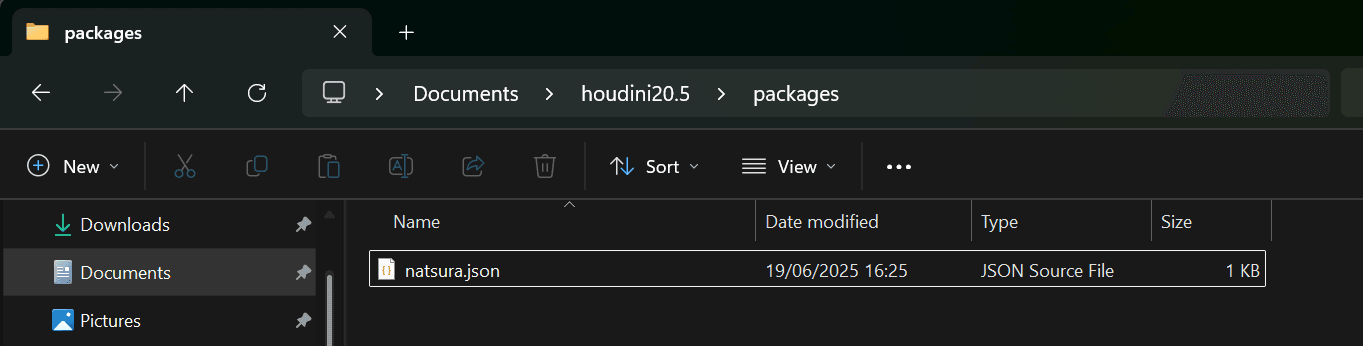
Screenshot example of the correct place:
- In File Explorer, go to the Natsura folder:
C:/Users/yourwindowsusername/Documents/natsura - Click once on the address bar at the top.
It becomes plain text like:C:\Users\yourwindowsusername\Documents\natsura - Press Ctrl + C to copy it.
- In
natsura.json, replace theNATSURA_ROOTline with the correct path:"NATSURA_ROOT: C:\Users\yourwindowsusername\Documents\natsura" - now, you must change the slashes from
\to/
"NATSURA_ROOT": "C:/Users/yourwindowsusername/Documents/natsura"
/. Do not leave any backslashes \ in the JSON path.If you don’t want the extra Natsura UI:
- Remove
"$NATSURA_UI"from"path". - Remove the
NATSURA_UIblock from"env".
Save the file as natsura.json.
Step 7 – Start Houdini and check Natsura
Now we do the first and only check.
- Start Houdini 20.5 or 21.0 – Python 3.11.
- Watch the startup:
- No license errors.
- No Python/Qt errors mentioning Natsura.
- When Houdini is open, it should look similar to:
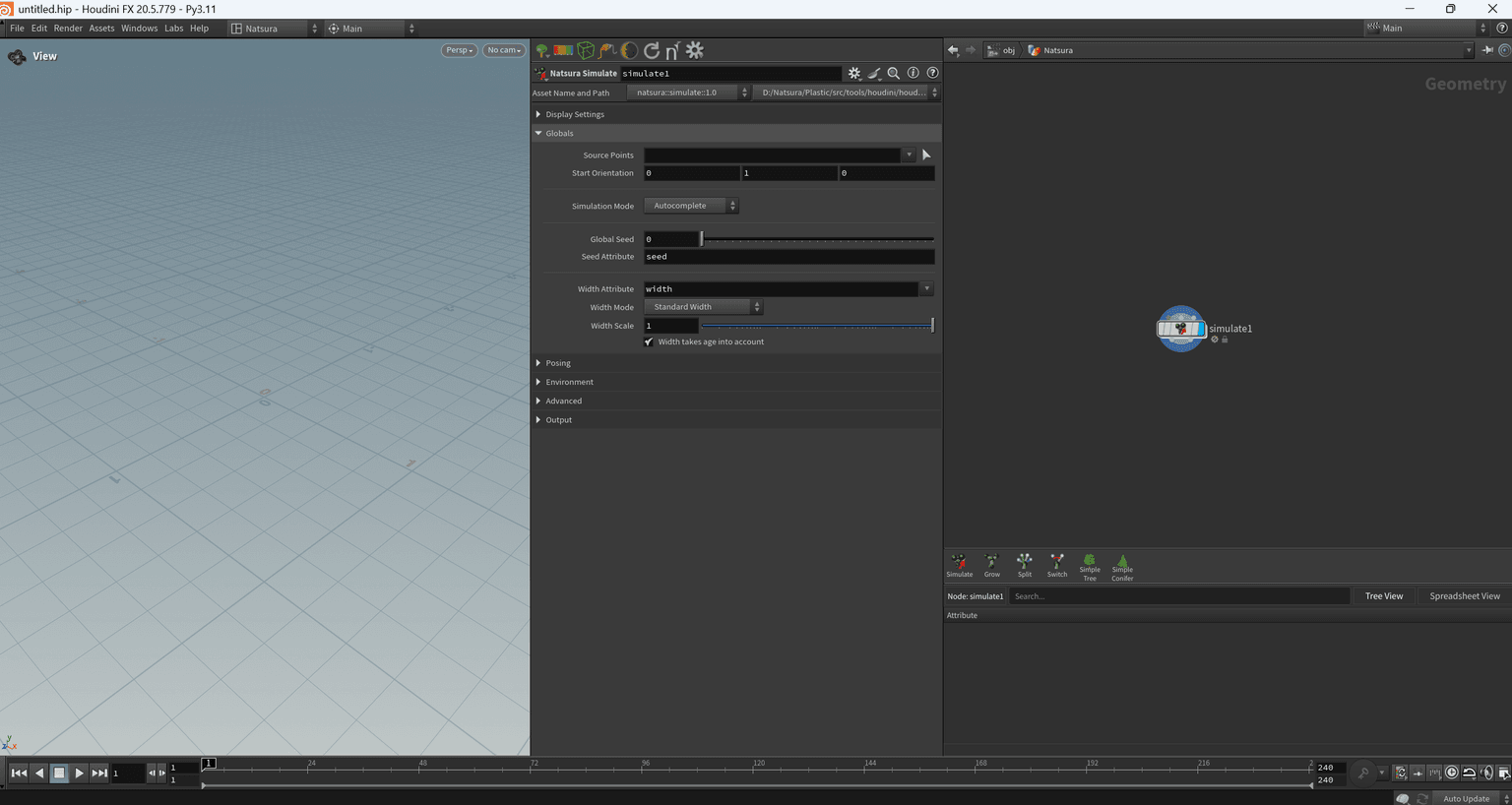
You’re done if:
- Title bar says Houdini 20.5.x – Py3.11 or Houdini 21.0.x – Py3.11.
- You see a Natsura menu / shelf.
- The Natsura Simulate node works without Python/Qt errors.
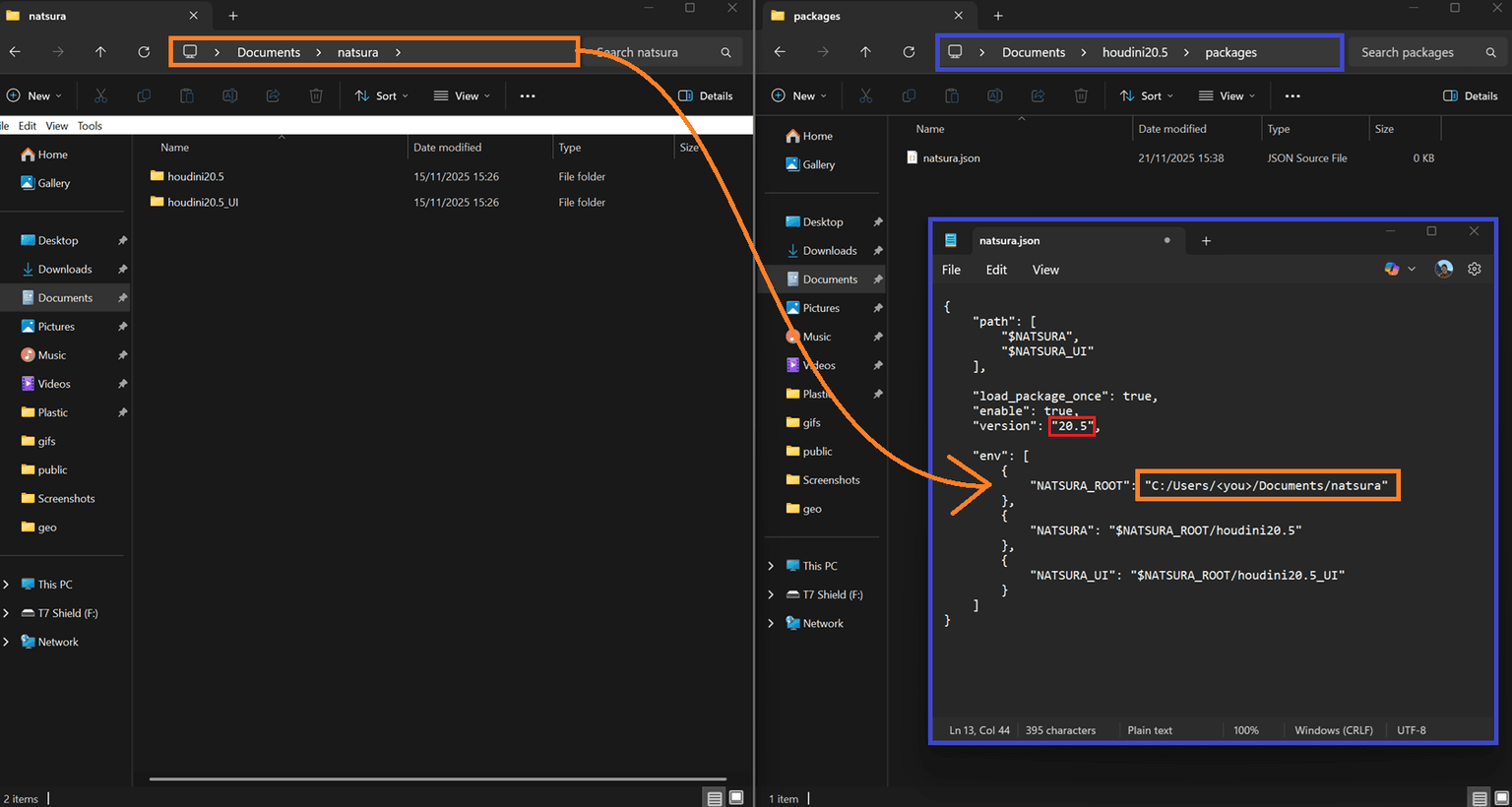
Your folders and file should look like:
The first time Natsura runs, it will ask for your Natsura license key:
- Go to https://natsura.com.
- Open your dashboard.
- Paste your license key into the prompt in Houdini.
If Natsura does not appear, go to Troubleshooting.
Troubleshooting
Houdini creates this when it runs.
- Open the SideFX Houdini Launcher.
- Start Houdini 20.5 or 21.0 – Python 3.11.
- Close Houdini cleanly.
- Check again:
C:/Users/yourwindowsusername/Documents/houdini20.5/
# or for Houdini 21.0:
C:/Users/yourwindowsusername/Documents/houdini21.0/
If it still doesn't exist, you're probably not launching the right version with Py3.11.
Check these in order:
- Houdini version:
- Must be Houdini 20.5 or 21.0 – Python 3.11 (not Py3.10).
- Package file location:
natsura.jsonmust be exactly here:C:/Users/yourwindowsusername/Documents/houdini20.5/packages/natsura.json
- Paths inside
natsura.json:NATSURA_ROOTmust point to the folder that containshoudini20.5/:C:/Users/yourwindowsusername/Documents/natsura/houdini20.5/
- Check Houdini's package report:
- In Houdini: Help → About Houdini → Show Details → Packages
- Find
natsura.json enableshould betrueand there should be no Natsura errors. :::
You likely pasted Windows-style backslashes directly into JSON.
What you copied:
C:\Users\yourwindowsusername\Documents\natsura
What JSON must contain:
"NATSURA_ROOT": "C:/Users/yourwindowsusername/Documents/natsura"
Fix:
- Replace all
\with/. - Make sure there are no backslashes left.
- Save
natsura.json. - Restart Houdini. :::
- Confirm you launched Houdini 20.5 or 21.0 – Python 3.11.
- Temporarily disable other Houdini packages:
- Move other
.jsonfiles out ofpackages/.
- Move other
- Start Houdini with only
natsura.jsonpresent. - If errors disappear, another package is conflicting. :::
- Remove
"$NATSURA_UI"from"path". - Remove the
NATSURA_UIblock from"env".
Save the file as natsura.json.
- Delete or rename:
C:/Users/yourwindowsusername/Documents/houdini20.5/packages/natsura.json - (Optional) Delete the Natsura folder:
C:/Users/yourwindowsusername/Documents/natsura/
Email support@natsura.com with:
- Your Windows version (10 or 11)
- Your full Houdini version
- The full content of your
natsura.json - Any errors from:
- The Houdini console
- Houdini log files
- Help → About Houdini → Show Details → Packages :::