Trunk Extension
Trunk extension combines a scanned (or sculpted) trunk with grown branches and roots. The scan gives you real detail where people look most, the trunk and its base; Natsura grows the rest from the scan's open ends. A tiling texture blended in at each join hides the seam.
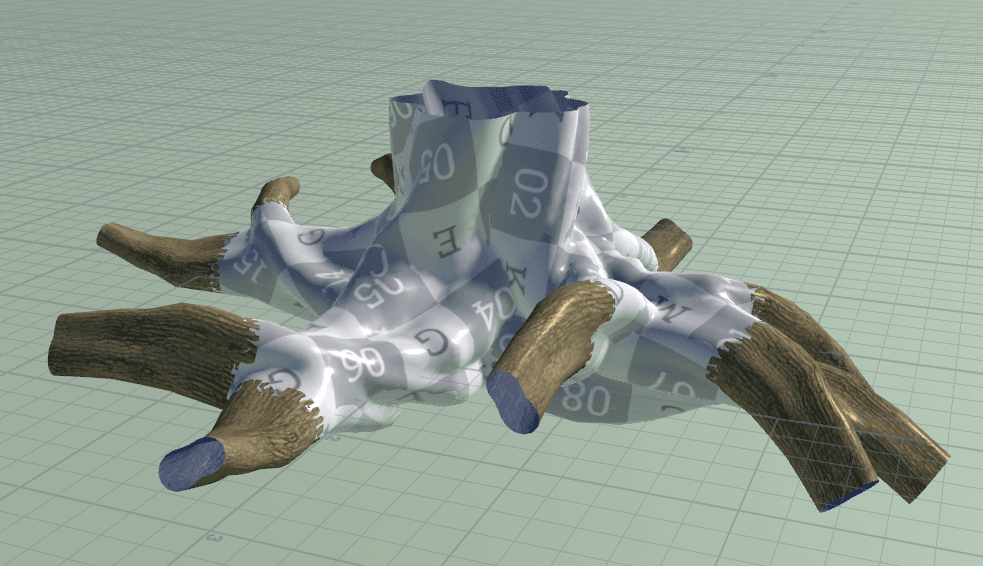
The Simple_Scan_Extension.hip example in the Natsura examples is a complete setup to start from. For the other things you can do with scans, see Scan Workflow.
1. Import the scan
Place Import Highpoly from the toolbar's Scans menu, and press Enter in the viewport to start its wizard. It walks you through five steps, with Back and Continue to move between them:
- Import Geometry: pick the Source File.
- Import Textures: pick the scan's colour, roughness, normal and height maps, if you have them.
- Transform: rotate and scale the scan into place.
- Trim Geometry: select the points you want to keep.
- Pick Profiles: select the openings you want to grow from.
You can also set Mode to Advanced and fill in the same settings by hand.
Import Highpoly has two outputs, Proxy and Profiles (the openings you picked).
2. Create the graft mesh
Wire both outputs of Import Highpoly into Create Graft Mesh, Proxy into the first input and Profiles into the second. It remeshes the scan into a lighter mesh and prepares the ends you picked for growth to attach to.
- Mode, under Remesh, is Remesh by default. If your mesh is already clean, set it to Use Existing Mesh to skip remeshing and keep its UVs. The mesh still has to go through Create Graft Mesh.
- Flatten Ends, on by default, gives the growth a clean round start.
- Graft Seam % Polys reduces the polygons toward each end. The density at the end sets the density of the grown mesh.
- Graft Blend Region sets how far back from the end the reduction and the texture blend reach. A longer region gives a smoother change and stretches the blended texture further.
- Graft Textures is where you give the tiling bark texture for the ends, with its uvscale. Set Texture Mode to Resource to use a Surface Resource instead.
- UV Unwrap (off by default) runs a fast auto-UV made for high-poly meshes. It usually works on its defaults; the setting you are most likely to change is clusters. The example scene uses Remesh with UV Unwrap left off.
Baked Blend is the only Graft Mode in 0.7.3.
3. Bake
Wire the first two outputs of Create Graft Mesh into the first two inputs of Bake (Proxy and Bake Target). Bake projects the scan's textures onto the new mesh and bakes the tiling texture into the ends at the same time. Press Bake All to write the maps. Leave Extrapolate Boundaries on. For the settings, see Baking.
Double-click the Bake to edit the maps in Copernicus before they are written.
4. Grow from it
Select the trunk Grow (the one wired into the Simulate) and add a Trunk Decoration from the toolbar's Decorate menu. Wire the Bake into the Trunk Decoration's first input (Mesh), and clear the Trunk Decoration's Geometry File: it points to an example trunk and takes priority over the input. That Grow now carries the scan.
Grows wired into it grow from the scan's ends, with the usual growth controls. Give them a Surface Decoration with a Surface Resource for their bark. Using the same tiling texture there as in Graft Textures keeps the join matched.
For the workflow on screen, watch Extend Scanned Trunks.
Status
The scan tools are experimental and work best on tube-shaped trunks. In 0.7.2 scan trunks were turned 90 degrees away from their extensions; 0.7.3 fixes this.
Scan Workflow
Bring a scanned or sculpted trunk into Natsura, grow from it, cut parts out of it as modules, or extract tiling textures from it.
Baking for Scans
Using Bake in the scan workflow: baking a scan onto its graft mesh, blending tiling textures in at the join, and extracting tiling textures from a scan.