Trunk Decoration
A Trunk Decoration puts a scanned or sculpted trunk on the tree. Select the trunk Grow and choose Trunk Decoration from the toolbar's Decorate menu. Assigned to the trunk Grow, it uses the trunk mesh in place of a swept surface, and the procedural branches and roots grow on from the ends of the scan.
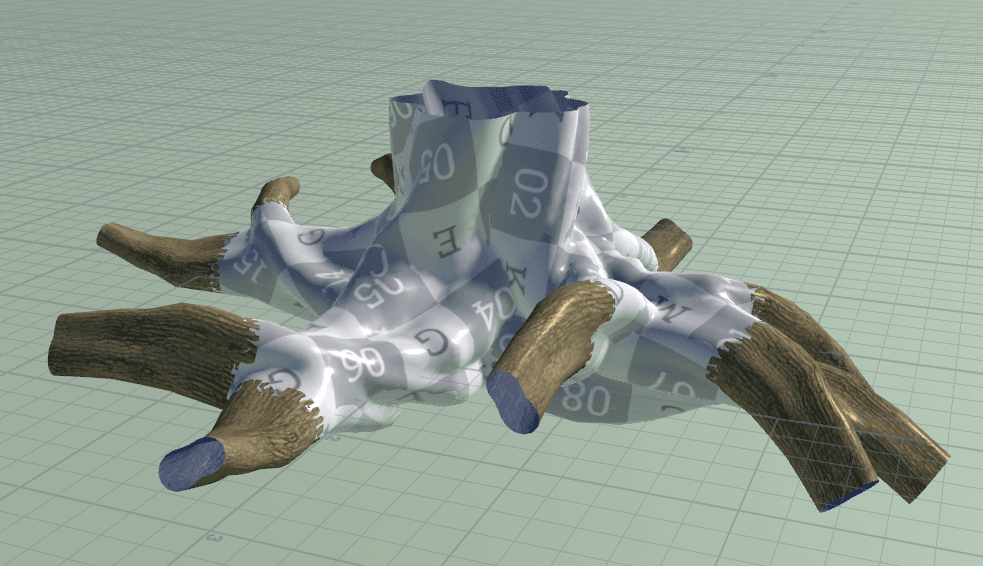
Geometry File points to an example trunk by default, and it takes priority over the Mesh input whenever it loads anything. To use your own trunk, wire it into the Mesh input, usually from Bake after Create Graft Mesh, and clear Geometry File. You can also leave the input empty and point Geometry File at a saved trunk.
The profiles that mark where growth continues travel with the baked mesh. The Profiles input is only for profiles you have separately.
Uniform Scale and Rotate line the trunk up, and Override Material swaps in your own colour, roughness, normal and height maps.
Grows that carry on from the trunk use a Surface Decoration for their bark. The full workflow, from importing the scan to blending the join with baked textures, is in Trunk Extension.
Surface Decoration
Sweep a surface along the grown branches, with UVs and displacement, and give it a material with a Surface Resource.
Assembly Decoration
Place rigged parts from an assembly library on the tree, choose which part goes where with traits, and pose them with effectors while they stay instances.