Atlas Materials
Leaf materials usually come from an atlas: one image holding many leaves, with matching maps for alpha, roughness, normal and so on.
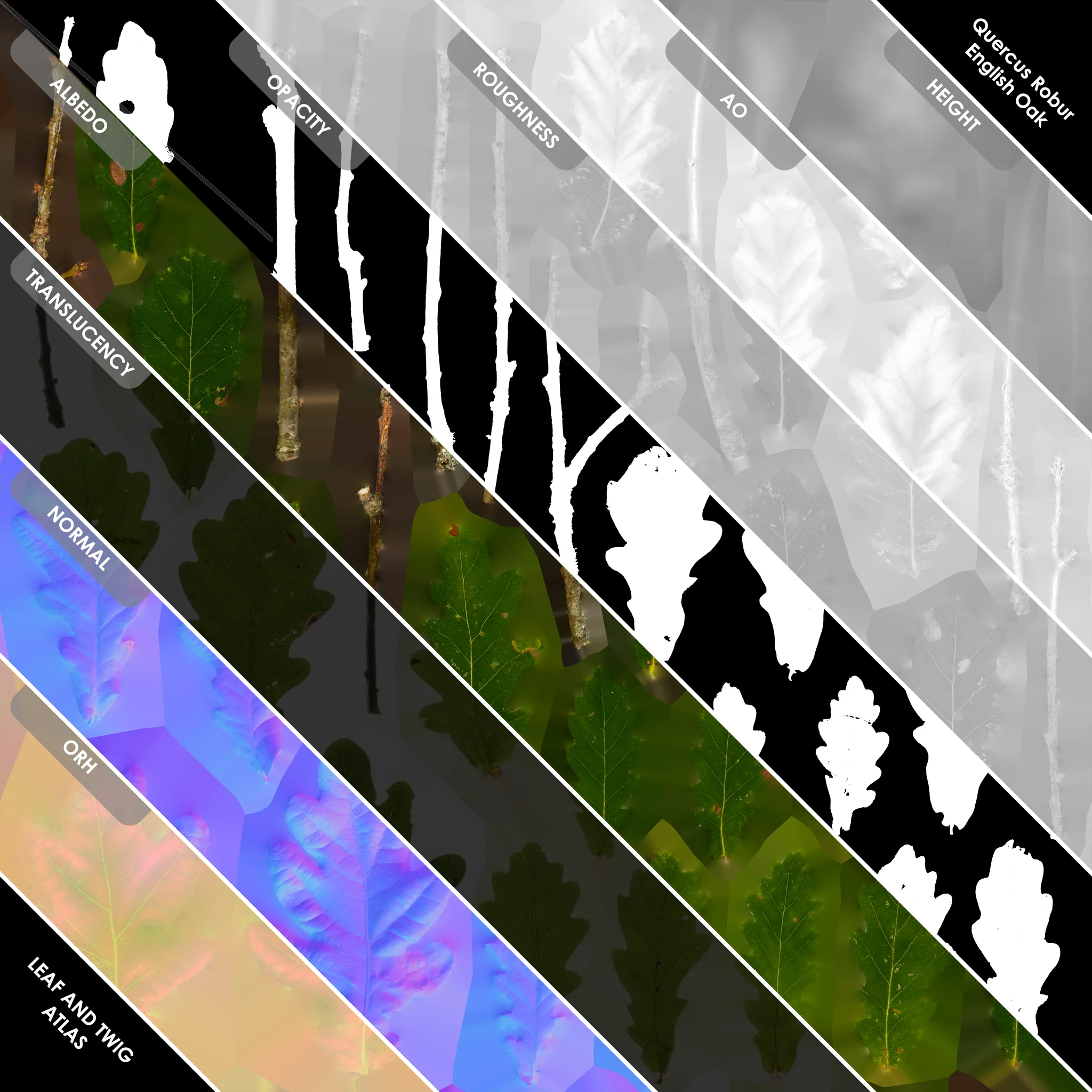
Atlases on assemblies
When your leaves are already modelled, as in a store kit, the atlas only needs to reach the material. Create a Surface Resource and pick the atlas colour map (and the other maps you have) under Surface Material. Then add the Surface Resource to the Assembly Resource's Materials list, by dragging it onto Surface Resource or picking it there. Group sets which faces it applies to; empty means the whole kit. The shape groups (cardish, tubeish, needleish, blobish) are a quick guess from each piece's shape, so needles and twigs can swap and double-sided leaves can read as tubeish; check the result in the viewport.
Deriving channels with Atlas Material
Atlas Material, which the Atlas Wizard runs first, reads an atlas for the atlas workflow. Colour, roughness, height, normal and subsurface each have a Derive setting: File uses the map you give it, and Cops derives the channel from the colour. Colour is File by default and the others are Cops, so a colour image is enough to start. Alpha has a menu instead, for how the alpha is made: Chromakey, White Background, Segment, the image's Alpha Channel, or a File.
Render All writes the channels to the Cache Directory. Double-click the node to edit the maps in Copernicus (see Copernicus).
Two-sided leaves
Leaves need a two-sided material, or they disappear when seen from behind. In Unreal, set the leaf material's shading model to Two Sided Foliage and turn on Two Sided. See Materials on the Unreal page.
Related
- Atlas Workflow, turning atlas images into leaf meshes.
- Foliage & Instancing, the foliage these materials go on.
Surface Materials
Bark and branch materials: the Surface Resource that holds colour, normal, roughness and displacement, and the decorations that wear it.
Copernicus
Editing texture maps inside Houdini's Copernicus (COPs): which Natsura nodes you can double-click into, and how the edited maps get written out.