Nanite Skeletal Assemblies
Export Unreal Nanite Assembly sends one tree, or a whole library of trees, to Unreal as Nanite Skeletal Assemblies. Each tree arrives rigged, skinned and with its instances intact, along with a wind file built from your Wind Config layers. The export works the same way in Houdini 20.5, 21 and 22.
Before you start
You need Unreal 5.7 or later, with the Procedural Vegetation Editor, USD Interchange and USD Core plugins enabled, and Nanite and Nanite Foliage turned on in Project Settings.
On the Houdini side, run Simplify Tree Rig and Skin and set up your Wind Config layers after the Simulate.
Export from Houdini
Wire the Simulate, or the last Wind Config after it, into Export Unreal Nanite Assembly. One wire carries the tree and its rig. Press Export (Solaris) to reach the node that writes the files. Its Help button opens a guide to every setting.
Simplified mode shows what every export needs, and Advanced shows the rest. Give each export its own Name, or assets will collide in Unreal, and turn on Version (under Advanced) so a new export never overwrites the last. Parts get generated names by default; set Piece Names to Set Name if you want readable ones. Set Format to .usd. The export node can start on .usda, the text version, which is heavier and slower to import.
Output Preview lists the files on disk, every asset Unreal will create, and the joint, instance and polygon counts. For more detail on a tree, put an Assembly Inspect anywhere upstream.
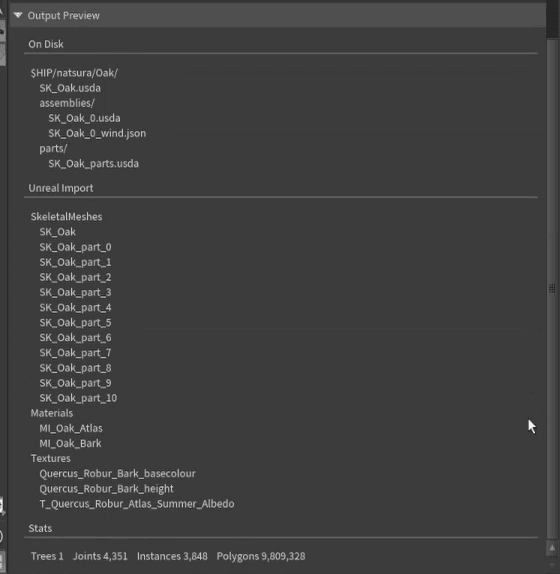
Save to Disk checks the export first. Anything that would break the import stops the save and names the joint or part at fault. Smaller things, like a default name or a missing texture, ask before saving anyway.
What gets written
Each export writes its own folder, named from Name and Version (Oak_v1/). The root file (Oak_v1.usd, or SK_Oak_v1.usd with Prefix on) is the one you import. Beside it, parts/ holds the parts shared by every tree, and assemblies/ holds one layer per tree with that tree's wind file (Oak_v1_0_wind.json).
Every part comes into Unreal as its own skeletal mesh, with its own skeleton and physics asset, and anything that was an instance in Houdini stays an instance in Unreal. Bones run along their branches, which is what Unreal's Dynamic Wind expects.
Import into Unreal
Drag the root .usd into an empty Content Browser folder and import with the defaults. A library of trees comes in together, sharing its parts and materials, and the tree is the skeletal mesh named after the export.
Import the root file rather than a single tree's layer from assemblies/, which comes in without materials. The empty folder matters because Interchange reuses any material that already has the same name.
Materials
Each material on the export shows how many parts use it and which textures it reads. Create imports it as a Material Instance, named after its Surface Resource unless you rename it. Use Existing points at a material already in your project instead: Copy Reference on it in the Content Browser and paste that into Unreal Material.
Created materials are based on the default USD material, which has no two-sided foliage or subsurface. For leaves, set the shading model to Two Sided Foliage and turn on Two Sided.
In practice, you set up your foliage and bark materials once and link them with Use Existing on every export after that. Re-imports then only bring in the skeletal meshes.
Wind
First, right-click the tree's skeletal mesh, choose Scripted Asset Actions > Import Dynamic Wind Data, and pick its wind file from assemblies/.
For now, Dynamic Wind only drives Instanced Skinned Meshes, so a skeletal mesh dropped straight into the level won't move. Create an Actor Blueprint, add an Instanced Skinned Mesh component, set its mesh to the tree, set Transform Provider to Wind_TransformProvider, and add at least one instance. The component draws nothing without one. Compile, save, and drag the Blueprint into the level.
Wind strength in the level comes from the foliage actor. In the Content Browser, under Engine, filter by Blueprint Class, search for foliage, drag BP_GlobalFoliageActor_UE5 into the level and raise its wind speed. How the tree responds is set per simulation group, one for each Wind Config layer, which you can see by opening the skeletal mesh and searching for wind.
Values you change on the skeletal mesh are lost every time the wind data is imported again, so it's better to make changes in Houdini. Either adjust the Wind Config layers, or set the export's Mode to Advanced, turn on Override in its Wind section and type the values Unreal should get. Then press Save Wind Only and import the wind data again.
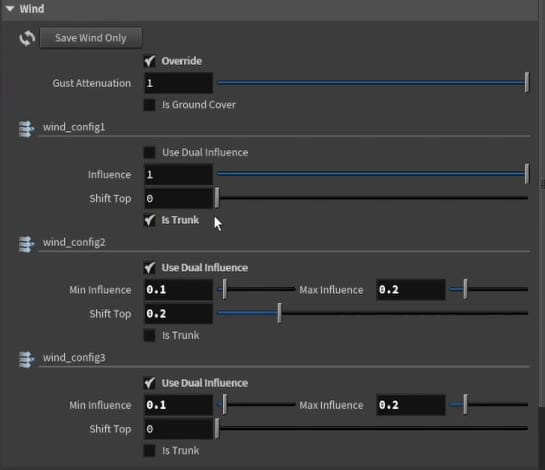
See Wind for Unreal for how the layers are built.
Re-exporting
If only the wind changed, use Save Wind Only and import the wind data onto the existing skeletal mesh.
If the tree changed, bump the Version and import the new folder rather than re-importing over the old asset. You can keep your Blueprint: drag the new skeletal mesh onto its Instanced Skinned Mesh, then import the new wind data. A new version of the same tree imports quickly, because the shared parts haven't changed.
Limits
Start around 10,000 instances and 600 joints per tree and work up from there. Roughly 56,000 instances per export is the ceiling, so split larger forests by cluster or region. Trees exported together share one set of parts, so a library is lighter than the same trees exported one at a time.
Status
Wind values, especially for strong wind, are still being tuned, and the defaults may change. Extra UV sets and vertex colours aren't exported yet, and changing Name or Version is slow on big trees.
If the result in Unreal is wrong, see Nanite Troubleshooting.