Take Your Tree to Unreal
This picks up where Your First Tree leaves off: you have a finished, decorated tree in Houdini, and now you'll get it into Unreal as a Nanite Skeletal Assembly with working wind. It's the Unreal half of the Natsura 101 walkthrough.
1. Export (Nanite Skeletal Assembly)
From the Export tools, click Export Unreal Nanite Assembly. Drag the left output (geometry) and the right output (rig) of the Simulate into it. See Export Unreal Nanite Assembly for the node.
Set the display to the export node: you should see the geometry slightly transparent overlaid with the skeleton: a combination of the procedural simulation and the assemblies stitched onto it.
Into Solaris
Click Enter Solaris on the export node. Solaris is Houdini's USD context, its home for stage management and rendering, and the bridge to Unreal. Inside the LOP network you'll find:
- SOP Create Nanite Assembly, the export node with its settings.
- Karma Physical Sky, turn on its display to light the tree.
To reality-check the tree, change the renderer from Houdini GL to Karma XPU (Houdini's GPU path tracer), and turn off the grid overlay. If anything looks wrong or missing here, it'll very likely be wrong in Unreal too.
Save the export
On Create Nanite Assembly:
- Click Auto Fill Materials to pull the scene's materials into Solaris.
- Give the tree a sensible name (e.g.
101_TreeTest_01). - Set the format to USD (the default may show USDA, change it to USD).
- Save to Disk.
Use the file-explorer button to find the output. You'll have a .usd file (the Nanite assembly) and a wind.json sidecar. Wind import comes next.
Visual pending.
2. Import into Unreal
Use Unreal 5.7 or later; that's when the Nanite tools for foliage arrived.
Prerequisites:
- Plugins: enable Procedural Vegetation Editor, USD Importer, and USD Core.
- Project Settings: turn on both Nanite and Nanite Foliage (Nanite Foliage enables voxelisation of foliage).
Import the USD
Drag-and-drop the exported .usd into the Content browser. Accept the defaults, review the USD structure, and click Import. You get folders for Materials, Skeletal Meshes, Textures. Open Skeletal Meshes, find your tree, and drag it into the viewport.
Fix instances stuck at the origin
Fix it in the Skeletal Mesh editor:
- Open the skeletal mesh.
- In the Asset Details panel, search Preserve.
- Set Shape Preservation to Voxelize.
- Apply Changes.
The tree now reads correctly and the instances sit where they belong.
Visual pending.
Apply the wind
The wind.json you exported carries the wind setup:
- Right-click the Skeletal Mesh → Scripted Asset Actions → Import Dynamic Wind Data, and pick the
wind.json.
You won't see wind yet, and this is the part to slow down on:
For a single tree, a Blueprint is the most direct route:
- Right-click → Blueprint Class → Actor, name it (e.g.
BP_101_Tree). - Open it and add a Skinned Instanced Mesh Component.
- On that component, pick your imported tree (
SK_..._TreeTest). - You still see nothing; an Instance Skinned Mesh Component needs at least one instance. Add one. Now the tree appears.
- Wind still needs a wind transform provider alongside the geometry. Add it.
- Compile and save the Blueprint, then drag it into the scene. You should see subtle motion.
To make wind more visible: in the Skeletal Mesh editor, search wind. With one simulation group present, increase Gust Attenuation. This strengthens the motion, but with a single wind layer you'll only get one kind of weird motion: no bending, no secondary wind. That's what configuring wind in Houdini fixes (next section).
For the engine-side reference, see Working with Assemblies in Unreal; for export/import problems, see Nanite & Unreal troubleshooting.
Visual pending.
3. Configure wind in Houdini
To get layered motion (a held trunk, shaking tips) you author wind in Houdini with the Wind Config node. See Wind for Unreal for the full picture.
First wind layer
Back in the Natsura context (click Natsura in the network path to leave Solaris):
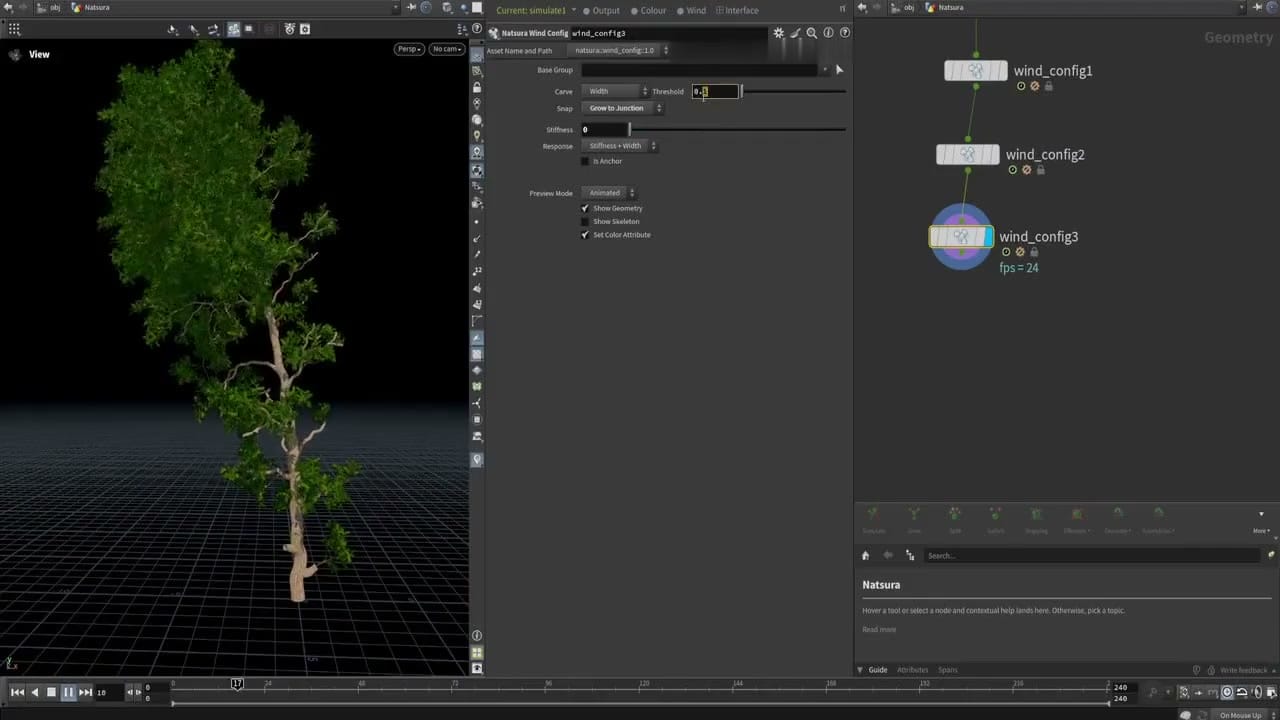
Right-click the Simulate → Wind Config (or type wind config; it's also under the toolbar's Export options). Wire it in and set the display to the Wind Config. The tree bends; press play for motion.
This first config treats everything as one trunk layer.
Second wind layer
Add a second Wind Config. On it, set a Carve Distance, currently carving up from the trunk; switch to carve down from the leaves. As you increase the distance, a second colour spreads from the branch tips. Reduce the stiffness of those elements, press play, and you get secondary shake on the branches. (You can add more than two layers.)
Visual pending.
Re-export and re-apply
Wire the Wind Config output into the Export Unreal Nanite Assembly and Enter Solaris again.
Save to Disk again. Two truths from the recording about iterating:
- You can't simply overwrite-and-reimport to pick up changes. Re-importing the same asset doesn't reliably pick up modifications. If you change the skeleton or geometry, version your tree (export a new name) rather than overwriting.
- Because in this case only the wind changed (not skeleton/geometry), you can re-apply the new
wind.jsonto the existing tree. - After renaming, material paths break: click Auto Fill Materials again before saving (the same gotcha as step 1).
Back in Unreal: right-click the Skeletal Mesh → Scripted Asset Actions → re-import the wind.json. In the Skeletal Mesh editor, search wind; you should now see two simulation groups. Gust Attenuation resets on re-import, so set it back (e.g. 5). Set both groups to intensity 1 and shift to 0 for a clean default, then eyeball the result: trunk deformation plus a secondary layer on the branches.
Two-sided leaf materials
Leaves with single-sided materials look wrong. In the Materials, set the leaf material to Two-Sided, and make sure you're viewing with materials enabled. If the bark material isn't showing, it's almost certainly the rename → Auto Fill gotcha: re-save, re-import, re-apply wind, set two-sided again on the new import.
That's a complete path: a tree grown, meshed, decorated, rigged, and exported from Houdini into Unreal with materials and layered wind. It's early access and rough in places, but it's a valid end-to-end pipeline.
Visual pending.
Where to go next
- The Unreal side in depth. Working with Assemblies in Unreal and Wind for Unreal.
- When an export goes wrong. Nanite & Unreal troubleshooting.
- Send a whole forest, not one tree. Feed seed points into the Simulate, see Variation.
Assembly Workflow
How Natsura handles hierarchies of packed instances. The structure that lets a single tree be made of many cached, instanced parts and still end up correctly meshed, rigged, and exportable.
Wind for Unreal
How Natsura's Wind Config sets up layered wind that travels to Unreal via wind.json, and what wind currently is and isn't in Natsura.